26.5 New Siterra Preview Notes
These notes describe what we've added to the new Siterra preview in this release. Review the Siterra Release Notes for other changes to the product in this release.
We're delivering this automatic upgrade to UAT environments on September 24, 2026 and to production environments on October 10, 2026.
These notes are subject to change until the production release.
Key changes
-
Some toolbar actions are now in context menus or ellipsis (...) menus to reduce clutter.
-
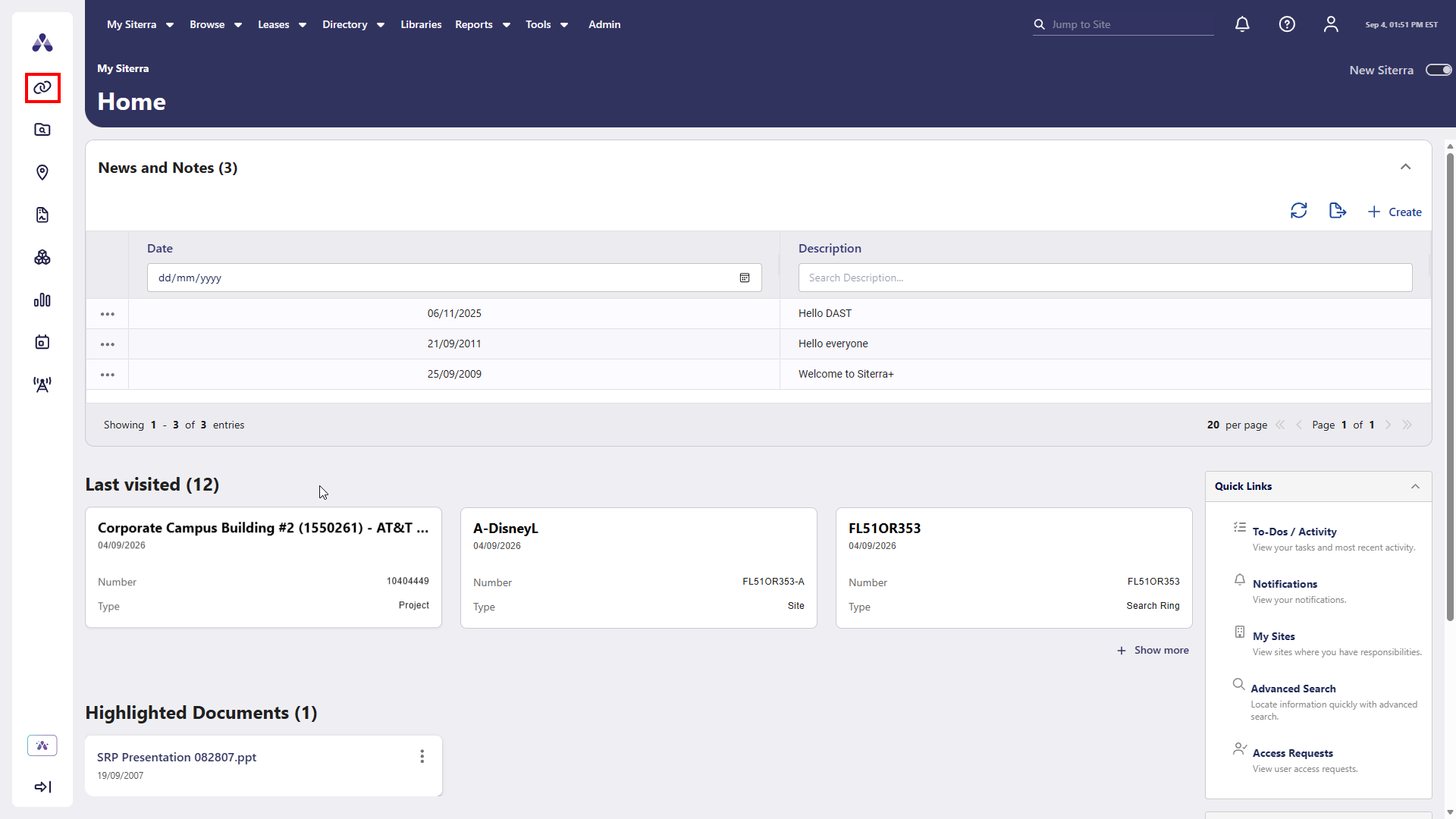
Siterra now switches between Classic and New Siterra based on the page you are on.
-
Fields, panels, and controls now appear in the same spots across all new Siterra pages.
-
The new left sidebar and top menus now hold all navigation options.
-
Data grids now use standard layouts, row menus, and link navigation.
|
Area/Page |
Classic |
New |
Impact |
|---|---|---|---|
|
Asset |
Extended Attribute (EA) grids display inconsistent shapes, padding, font sizes, and colors compared to standard grids. |
EA-based grids share container styling, padding, font sizes, and colors with standard Asset page grids. |
All Asset grids are now visually consistent. |
|
Asset / Incident |
Delete action on toolbar. |
Delete action located in ellipsis menu. |
Action location changed; toolbar streamlined. |
|
Events |
All actions exposed directly on top menu regardless of event type; static left navigation pane. |
Primary actions in the top menu now change based on the event type. Secondary actions (Subscribe, Log, Delete) are now in the ellipsis ( |
Top menu simplified and context-sensitive; left navigation modernized. |
|
Incidents |
Legacy left navigation pane; extra Delete button on top menu; legacy Activity Log layout. |
Modernized left sidebar navigation; extra Delete button removed from top menu; modernized Activity Log grid. |
Left navigation and audit log modernized; toolbar clutter reduced. |
|
Left Navigation |
Static navigation icons displayed without active features. |
Configurable External Links module in left workspace; non-functional icons hidden to preserve only External Links and Browse. |
Navigation workspace simplified; fast access to external links. |
|
Project / Schedule |
Uniform task typography; generic task menus; static form fields. |
Bold typography and parent ellipsis ( |
Task hierarchy, schedule readability, and form flexibility improved. |
|
Site section grids |
Inconsistent row menus across grids; Financial Data row menu contained Edit and Notes options. |
Row-level ellipsis ( Financial Data menu streamlined to View, Stream, View notes, and Log, with direct column hyperlinks for Site Name and Name. |
Grid interaction model standardized; record navigation improved. |
Projects
The Projects page is now available in new Siterra.
Edit a project
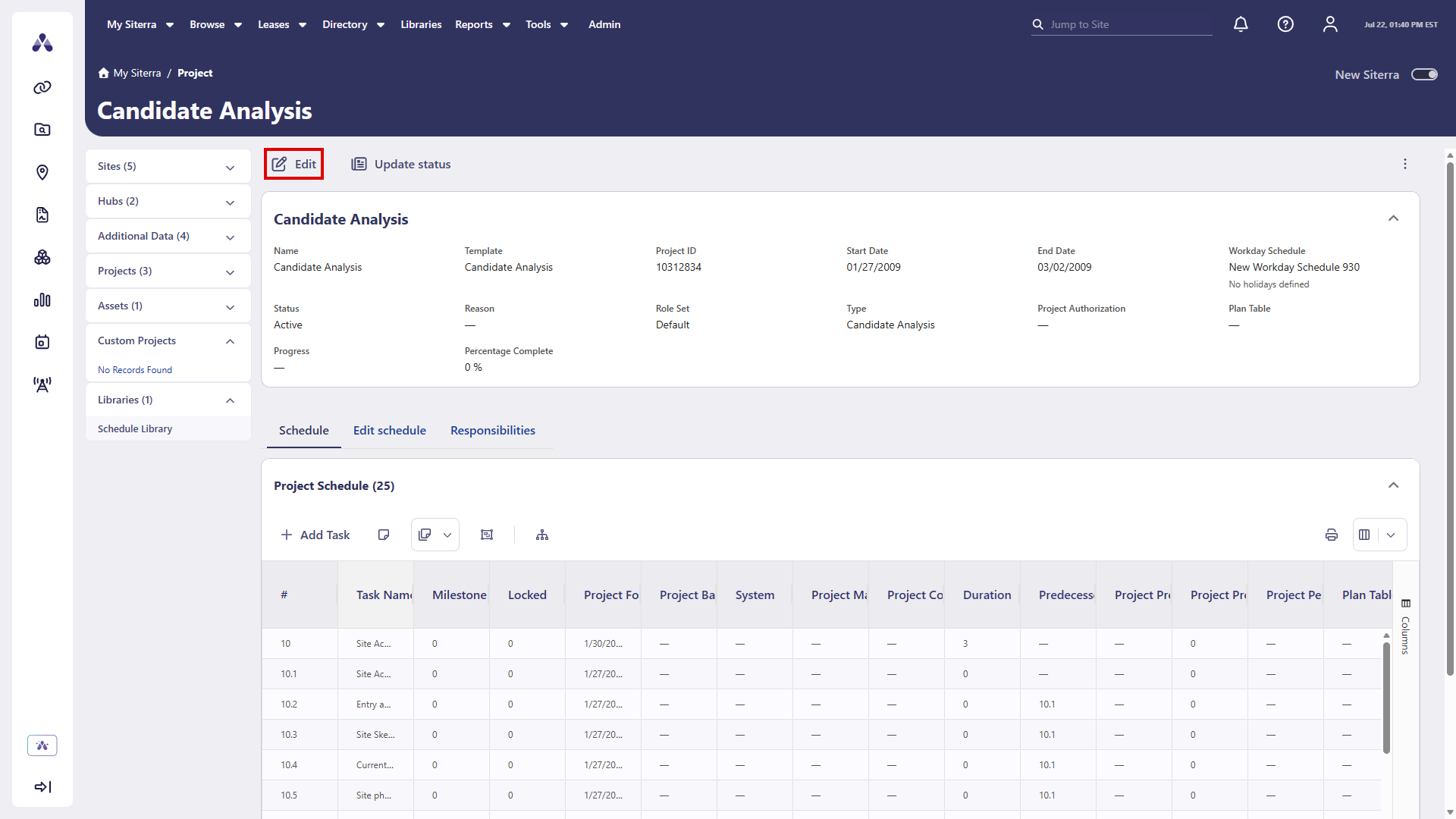
You can now edit a project directly from the Project page without navigating away from that page. Edit the Name, Number, Start Date, Workday Schedule, Status, and Extended Attributes.
-
Select Edit.
-
Make your changes.
-
Select Update.
Update a project status
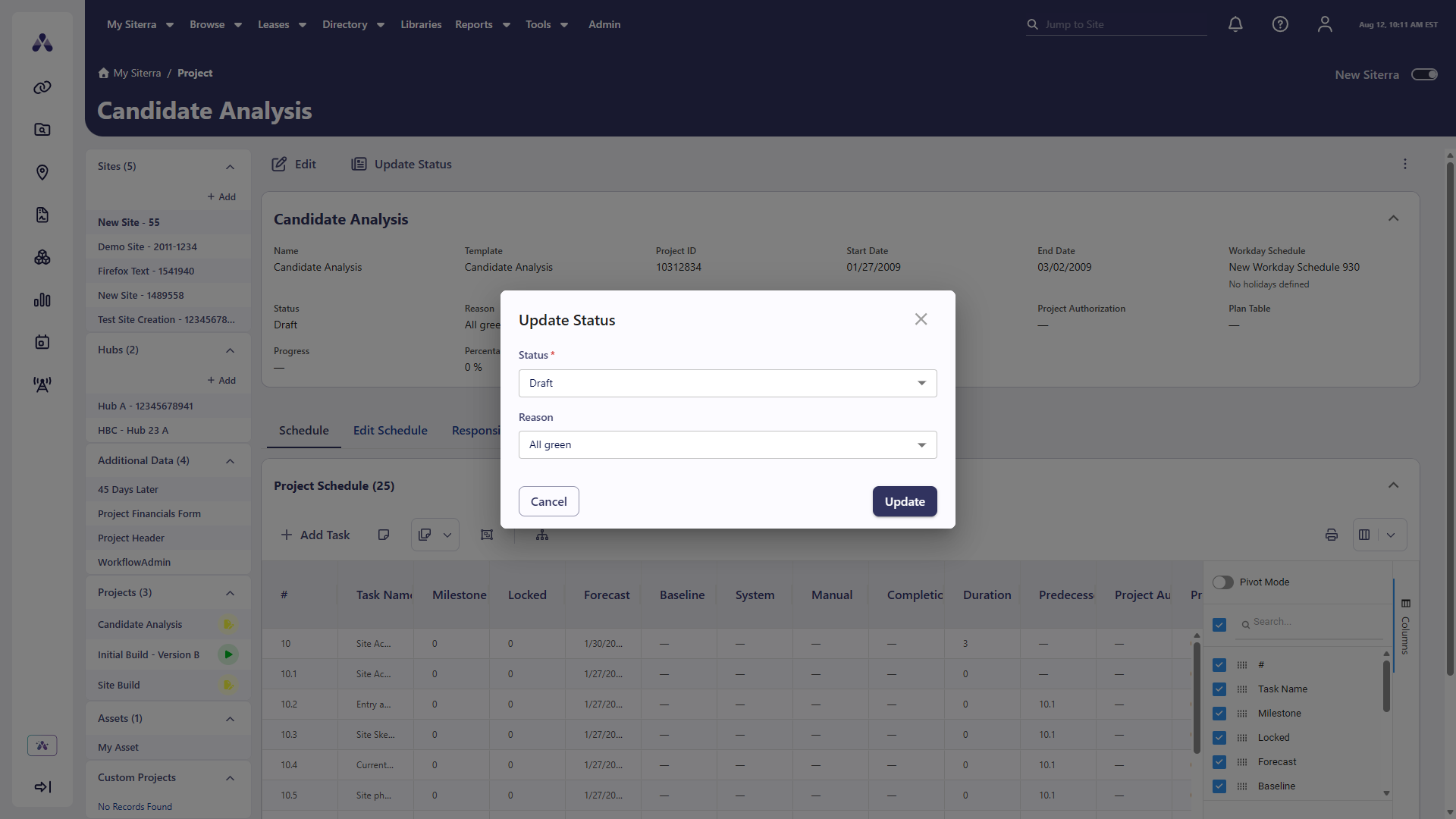
Update a project's status directly from the Project page in new Siterra. Select Update Status in the toolbar to open the Status Update dialog. Select the new status, optionally add a reason, and then select Update. The Project Information card refreshes to reflect the change.
-
Select Update Status.
-
Select the new Status.
-
Optionally, select a Reason.
-
Select Update.
Project page ellipsis menu
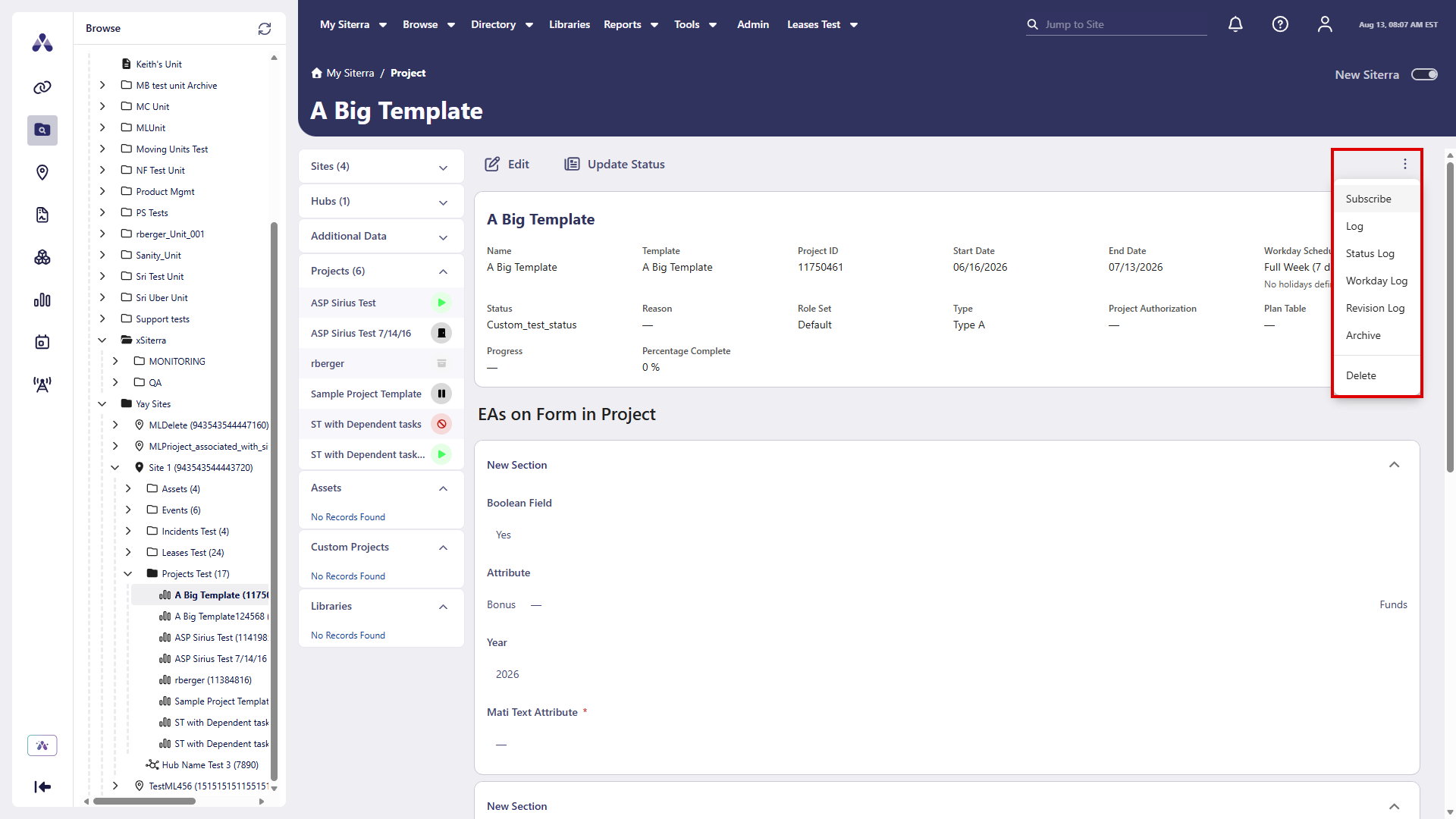
In the project home page toolbar, select the ellipsis menu ( ) to access additional actions. You can do this without navigating away from the page.
-
Subscribe
-
Log
-
Status Log
-
Workday Log
-
Revision Log
-
Archive
-
Delete
Extended Attributes on the Project form
Capture additional project-specific information directly on the Project form in new Siterra. Extended Attributes are now dynamically rendered based on your organization's configuration, so all relevant fields appear in the form without requiring you to switch to the classic Siterra. The system validates required Extended Attribute fields before saving the project.
Project schedule grid
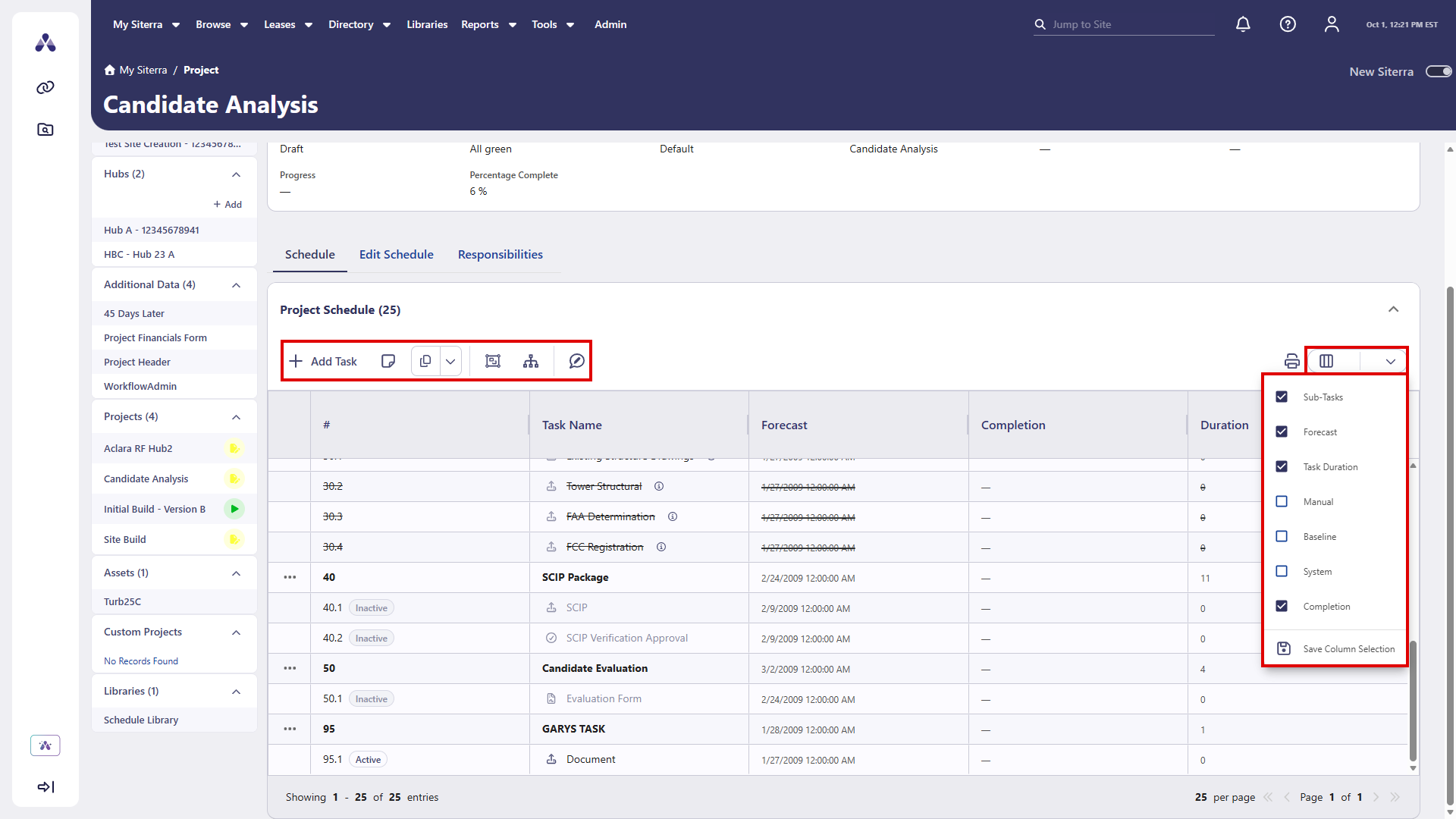
Review and manage project schedules faster and with greater clarity in the modernized Siterra Schedule grid. The updated experience introduces an enhanced visual hierarchy and instant access to task-level actions directly from the schedule rows, helping you keep projects moving forward without switching screens.
-
Visual hierarchy: Bold text marks top-level tasks. Numbering (like 10.1) shows subtasks. Icons and status pills make the schedule easy to scan.
-
Parent task menus: Select the ellipsis (
 ) on a parent row to add notes, view dates, or check logs.
 -
Child task menus: Select a task icon to open a menu for that task type. You can upload files or enter data without leaving the page.
Assign, reassign, and remove role assignments
View responsibility assignments and ownership data directly on the Project page in new Siterra. The Responsibilities section appears as a horizontal tab alongside other project sections, giving you a centralized view of who is responsible for what.
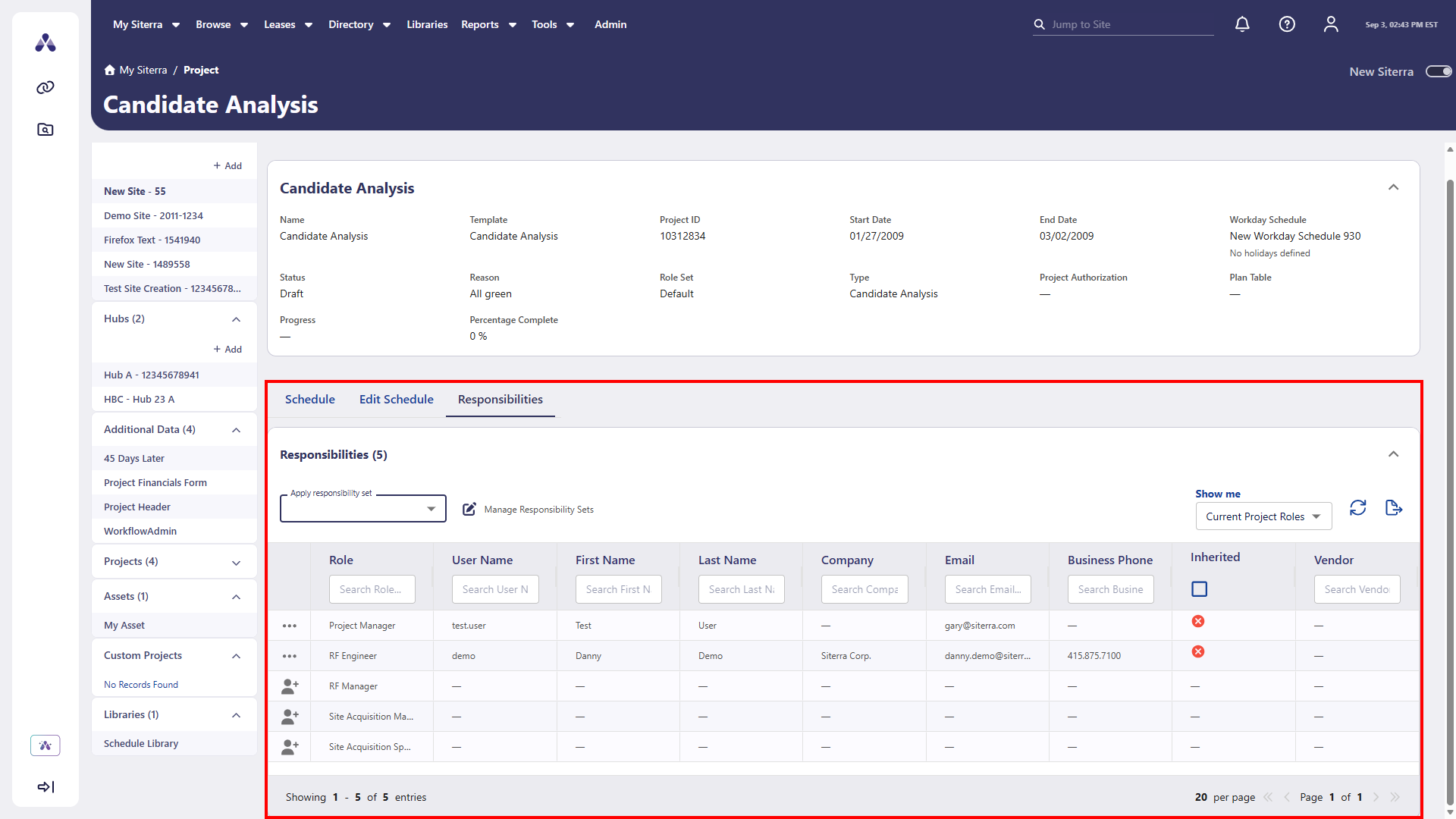
A person icon with a plus  shows roles with no assigned user.
An ellipsis () shows roles already assigned to a user.
To assign a user to a role, select the person with plus icon in the role to assign, then in the Select User dialog, select + Select next to the user.
To reassign a role to another user, select the ellipsis () > Reassign, then in the Select User dialog, select + Select next to the user.
To remove an assignment, select the ellipsis () next to that role, then select Remove Assignment.
Filter responsibilities
Filter and sort responsibilities using:
-
Show me: Select an option to display Current Project Roles or All Project Roles.
-
Column headings
Select Refresh  to update the list.
Apply a responsibility set
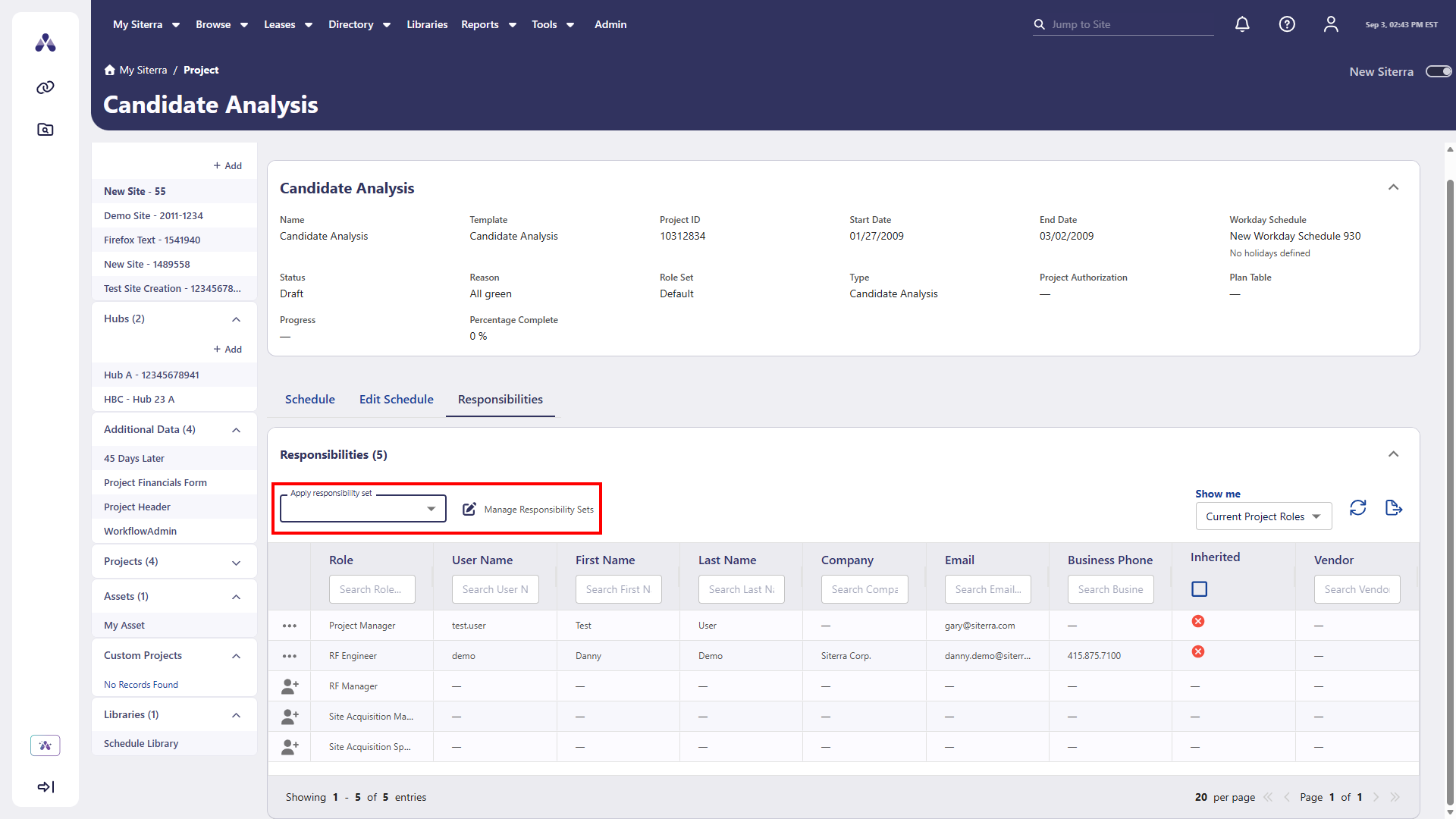
Assign responsibilities once, save the assignments, and then reuse them on any project.
-
Select Manage Responsibility Sets on the Responsibilities tab of the Project page.
-
On the Manage Responsibility Sets page, assign users to all available roles and save the assignments as a set.
-
Select Return to Project.
-
In Apply responsibility set, select the responsibility set to apply, then select Apply in the confirmation dialog that opens.
This overrides any existing role assignments.
Activity Log section
Review the complete change history and audit trail for any incident directly within the new Siterra Incidents page, removing the need to switch back to the classic Siterra. The new Activity Log section provides full visibility into all updates made to an incident, allowing you to track changes in a clean, modern workspace. The Activity Log shows an update to an incident two to three hours after the update was made.
-
Full change tracking: View log records that show the event, the user, and the date.
-
View controls: Select the header or arrow to expand or collapse the section.
-
Refresh and export: Use the Refresh icon to update the list or Export to download the data.
-
Fast navigation: Data updates as you move between incidents. This ensures you see the correct history for each item.

External links in left navigation
Access your organization's configured resources and external systems directly from the new Siterra left navigation. Select External Links in the left navigation bar to open the external links workspace. The workspace shows the categories and links your administrator has configured. Expand or collapse categories to find the link you need, then select a link to open its destination without refreshing the page. Select Browse at any time to close the external links workspace and return to the standard navigation tree.

Events page top menu actions
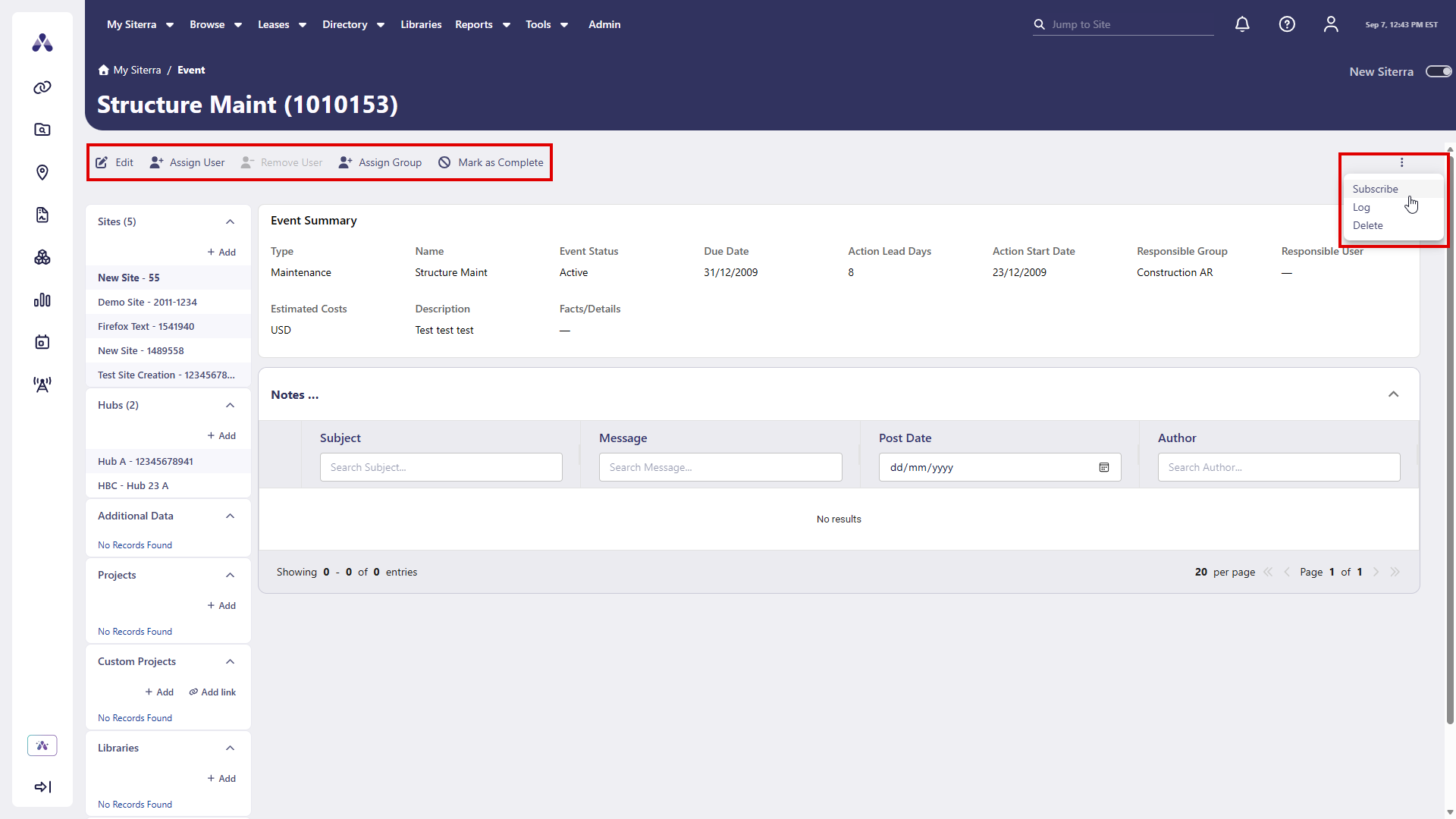
Manage events faster with a streamlined, state-aware top menu on the Events page in new Siterra. Primary actions are always visible in the top menu, while secondary actions are neatly combined into an overflow ellipsis () menu, keeping the page header clean and focused.
The top menu adapts to the type of event you are viewing.
Parent events
-
Edit
-
Assign User
-
Remove User: Available when a user is assigned, otherwise unavailable.
-
Assign Group: Replace an assigned user and update the Responsible User.
-
Mark as Complete
Recurring (child) events
-
Edit
-
Cancel
-
Assign User
-
Assign Group
-
Mark as Complete
Select the ellipsis () in the top-right of the toolbar to access additional actions. For parent events, these include Subscribe, Log, and Delete. Recurring events show Subscribe and Log only.
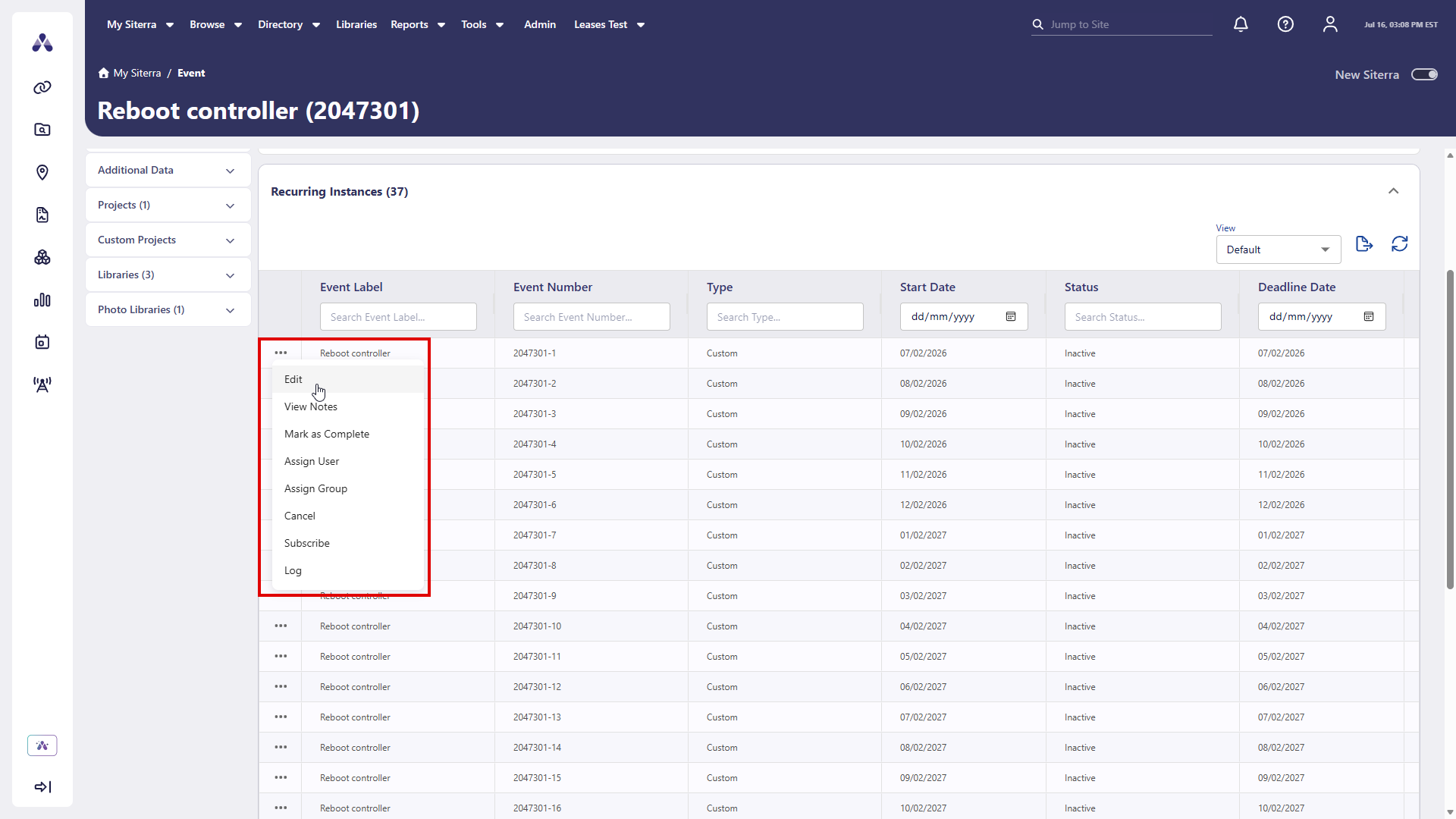
Recurring instances row-level actions
Select the ellipsis () next to an item in the Recurring Instances section of the Events page to select an available action for that item without navigating away from the section.
Available actions:
-
Edit
-
View Notes
-
Mark as Complete
-
Assign User
-
Remove User
-
Assign Group
-
Cancel
-
Subscribe
-
Log
Site page financial data section row-level actions
In the Financial Data section of the Site page, select the ellipsis () to choose an action for an item. You can do this without leaving the Financial Data section.
Available actions:
-
View
-
Stream
-
View Notes
-
Log
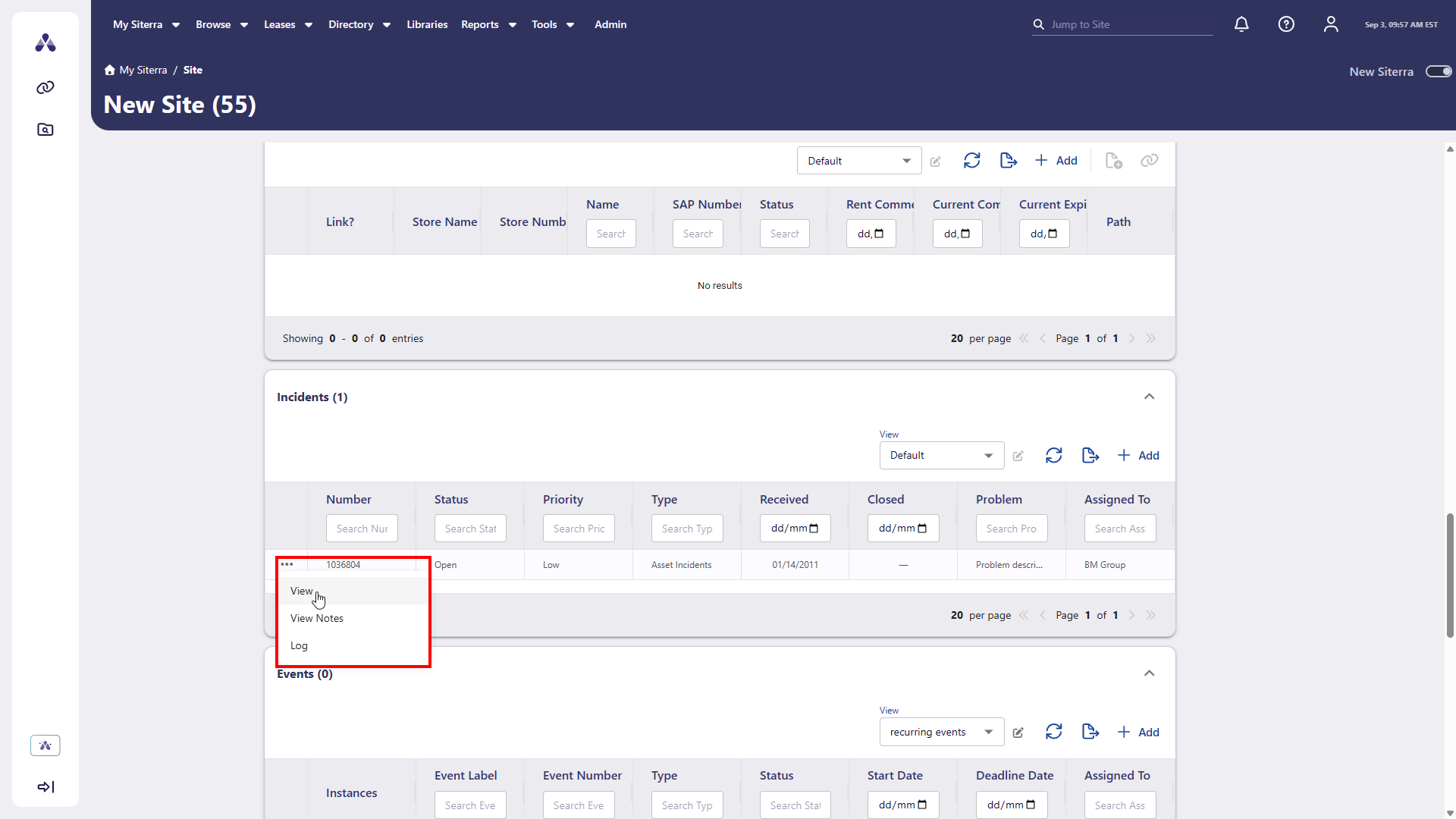
Site page incidents section row-level actions
In the Incidents section of the Site page, select the ellipsis () to choose an action for an item. You can do this without leaving the Incidents section.
Available actions:
-
View
-
View Notes
-
Log
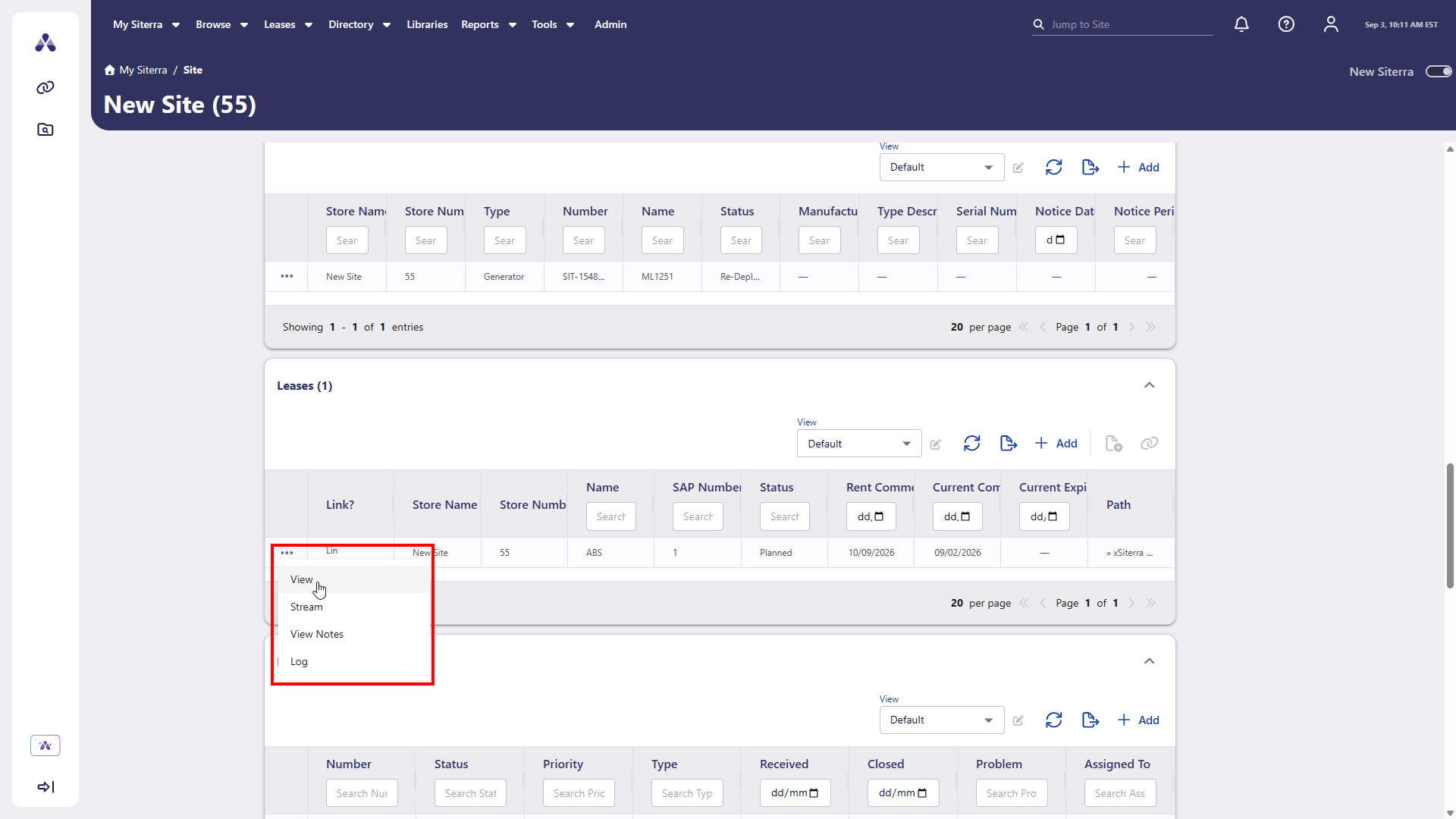
Site page leases section row-level actions
In the Leases section of the Site page, select the ellipsis () to choose an action for an item. You can do this without leaving the Leases section.
Available actions:
-
View
-
Stream
-
View Notes
-
Log
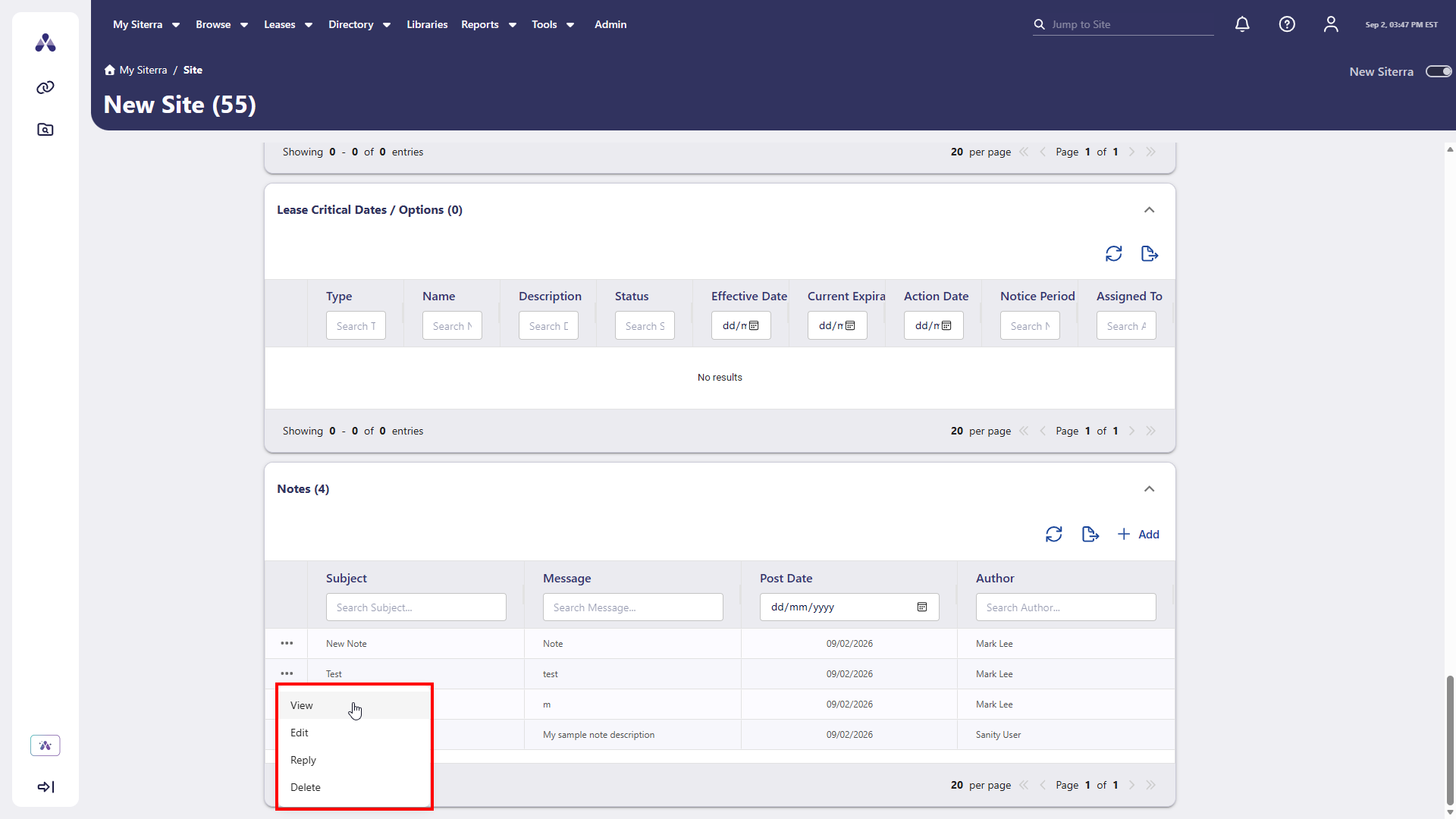
Manage site notes directly from the Notes section
You can now manage site notes directly from the Notes section on the Site page. Select the ellipsis () on any note row to access note management options:
-
View: Open and review full note details without leaving your context.
-
Edit: Update note content and details quickly.
-
Reply: Respond directly to ongoing note discussions.
-
Delete: Remove obsolete notes to keep your site records up to date.
Consistent section design on the Asset page
Extended attribute-based sections on the Asset page now share the same visual design as all other sections on the page. Typography, spacing, colors, borders, and hover and focus states are now consistent across every section, giving you a unified and polished experience without visual disruption as you work.
Improvements and issues fixed
|
Component |
Summary |
Reference # |
|---|---|---|
|
Project |
The Edit Project window now correctly excludes the End Date field, ensuring project end dates are updated exclusively through the project recalculation process. |
SP-60155 |
|
Incidents |
The Incident page now correctly displays the Delete option only in the ellipsis menu. |
SP-60153 |
|
Terminology |
New Siterra pages now correctly show the changes you make to sections and labels in the Terminology page. |
SP-60197 |